Disabling the Windows key
In the Start menu or Run box, type regedit to open the Registry Editor, then expand to HKEY_LOCAL_MACHINE\SYSTEM\CurrentControlSet\Control\Keyboard Layout.
Right-click Keyboard Layout, choose New → Binary Value, name it Scancode Map, then double-click it (or right-click and choose Edit) and enter 00000000000000000300000000005BE000005CE000000000. You can't copy-paste here, so type carefully. Click OK when done.
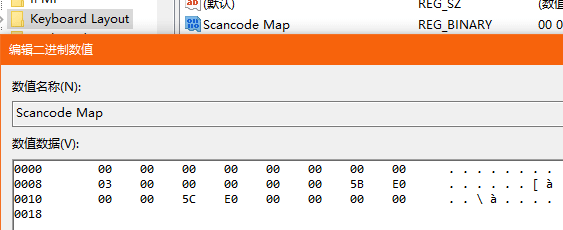
If that's too much trouble, copy the text below into a new text document, save it, change the file extension from .txt to .reg, and double-click to import:
Windows Registry Editor Version 5.00

[HKEY_LOCAL_MACHINE\SYSTEM\CurrentControlSet\Control\Keyboard Layout]
"Scancode Map"=hex:00,00,00,00,00,00,00,00,03,00,00,00,00,00,5b,e0,00,00,5c,e0,00,00,00,00
After a reboot it takes effect: the Windows key will be disabled.
Re-enabling the Windows key
Simply delete the Scancode Map binary value created above in the registry. Or save the text below as a .reg file and double-click to import:
Windows Registry Editor Version 5.00

[HKEY_LOCAL_MACHINE\SYSTEM\CurrentControlSet\Control\Keyboard Layout]
"Scancode Map"=-
A reboot is required here as well.
If you find the Windows key still disabled, check your keyboard settings.

Quantum Responses (0)